
See who arrived first
Number members waiting for voice support by their arrival order, so staff can see where to begin.
SUPPORT / SUPPORT WAITING
Number voice support members by arrival and restore their nicknames when they leave.
Module availability and allowances depend on your server’s plan. Compare plans →
Number members waiting for voice support by their arrival order, so staff can see where to begin.
Use Call Next, Move to Support, Skip, and Pause Queue controls, and see waiting times.
Restore members’ nicknames when they leave the waiting queue.
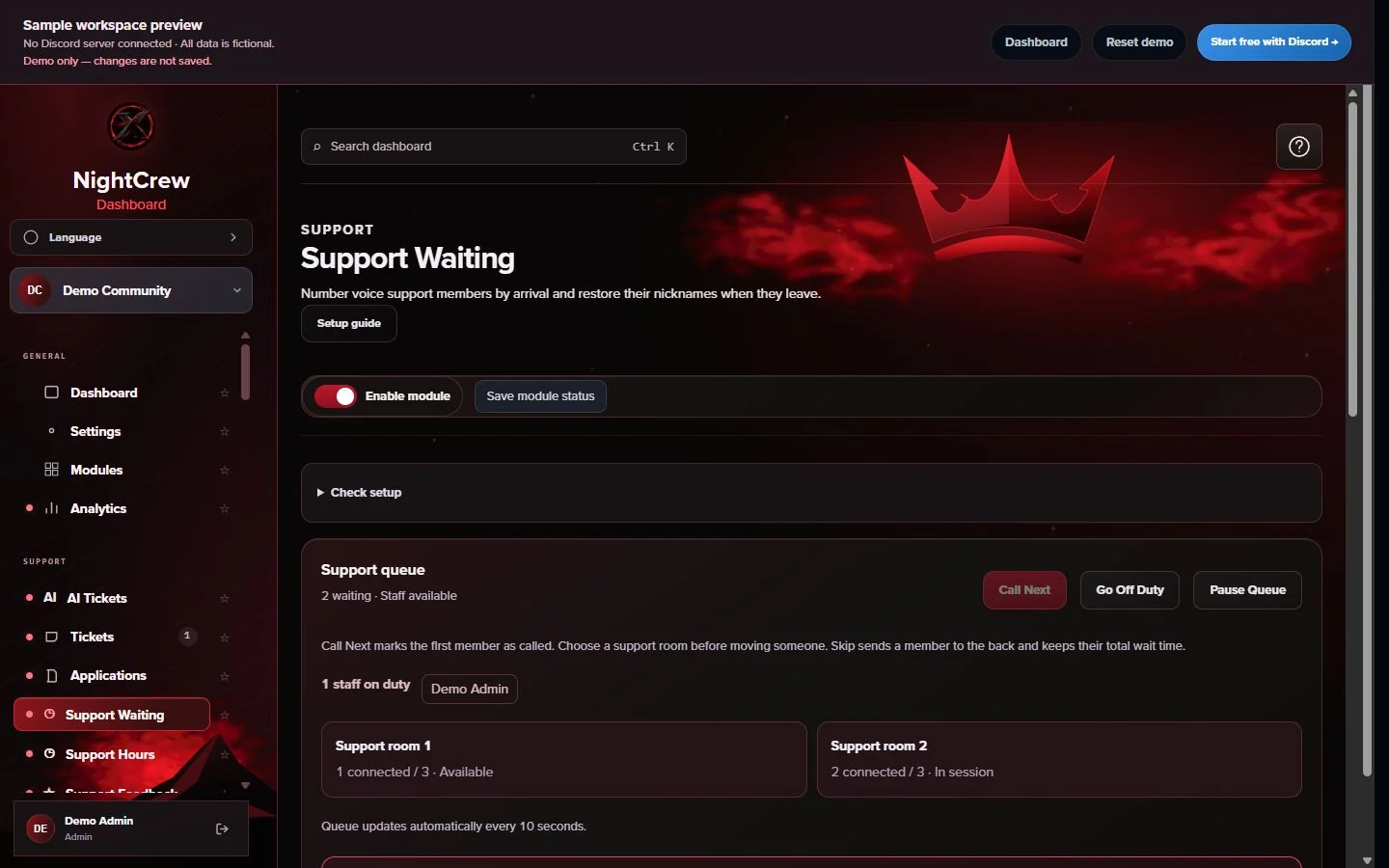
Edited replay of working browser examples · fictional data · silent and captioned.
START SMALL. MAKE IT YOURS.
Use the full guide for every setting, permission, and troubleshooting step.
Open Support Waiting documentation ↗Choose your waiting voice channel and support destination.
Check nickname and voice permissions, then enable the module.
Test the queue with staff before opening it to members.
BEFORE YOU SWITCH IT ON
Test the queue with staff before opening it to members. Use the module’s setup guide for the complete permission requirements and keep the bot’s role above any role it needs to manage.
Check that you selected the correct server, enabled the module, and chose channels or roles from that server. Review the setup checks, Discord permissions, and the current service status before retrying an action.
Disabling a module preserves its saved configuration. Some recovery work can continue—for example, an existing temporary role grant can still expire. Review the guide before disabling a feature with active jobs.
Open the setup guide linked above or ask the support community. Include the module name and what you expected, without sharing tokens, passwords, or payment details.
KNOW BEFORE YOU CONNECT
Free starter access
Free starter access is available. Other feature-specific limits may apply.
These are creation allowances per server, except pending personal reminders, which are per member. Custom Bot adds a dedicated identity. Verify current access in your dashboard before checkout.
Compare plans and feature limits →